
What it does
Connections
- Saved sessions in folders, Quick Connect, a New Session wizard and multi-session editing
- SSH2 with a built-in engine (libssh): host-key checks; key, certificate, agent, Kerberos and password logins; local, remote and SOCKS port forwards; X11 and agent forwarding; compression; Copy Public Key to Server (like ssh-copy-id); jump hosts, Ed25519 certificates and most OpenSSH options; an optional FIPS-approved-algorithms mode
- RDP sessions (Windows Remote Desktop) in a tab, with clipboard and fit-to-tab resizing
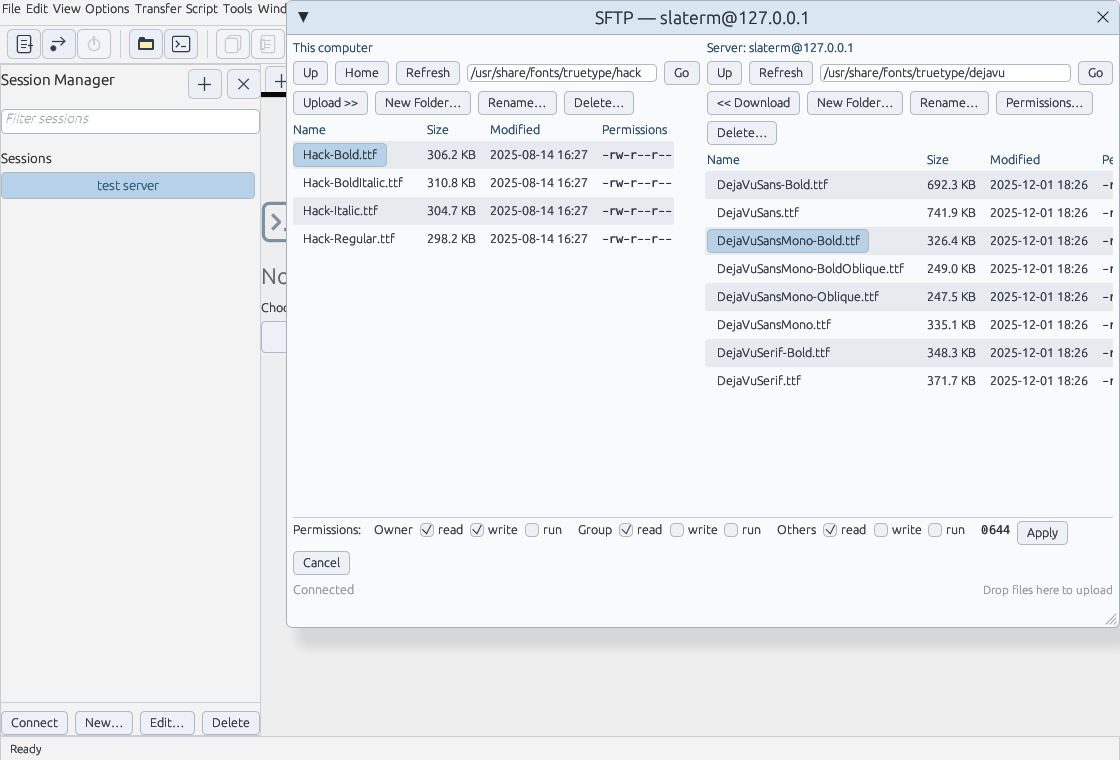
- A two-pane SFTP browser: your files beside the server's; upload and download files and folders, resume interrupted transfers, rename, delete and change permissions
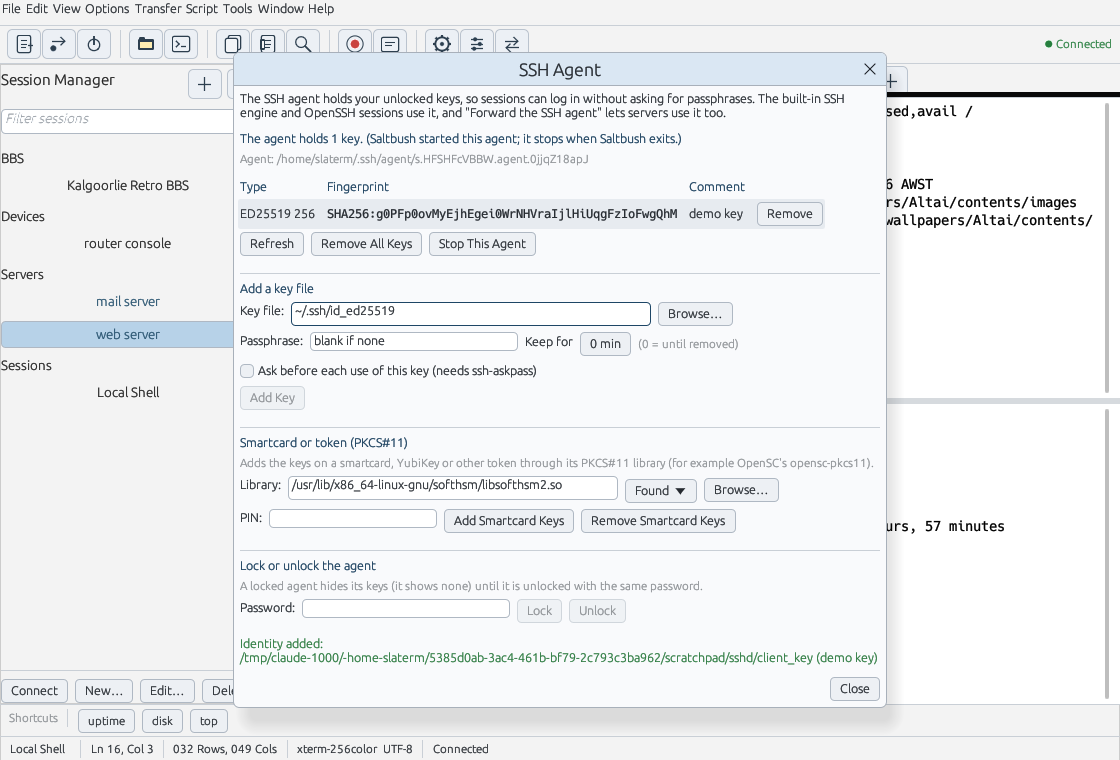
- Tools → SSH Agent: see and manage the agent's keys, including smartcard and token keys
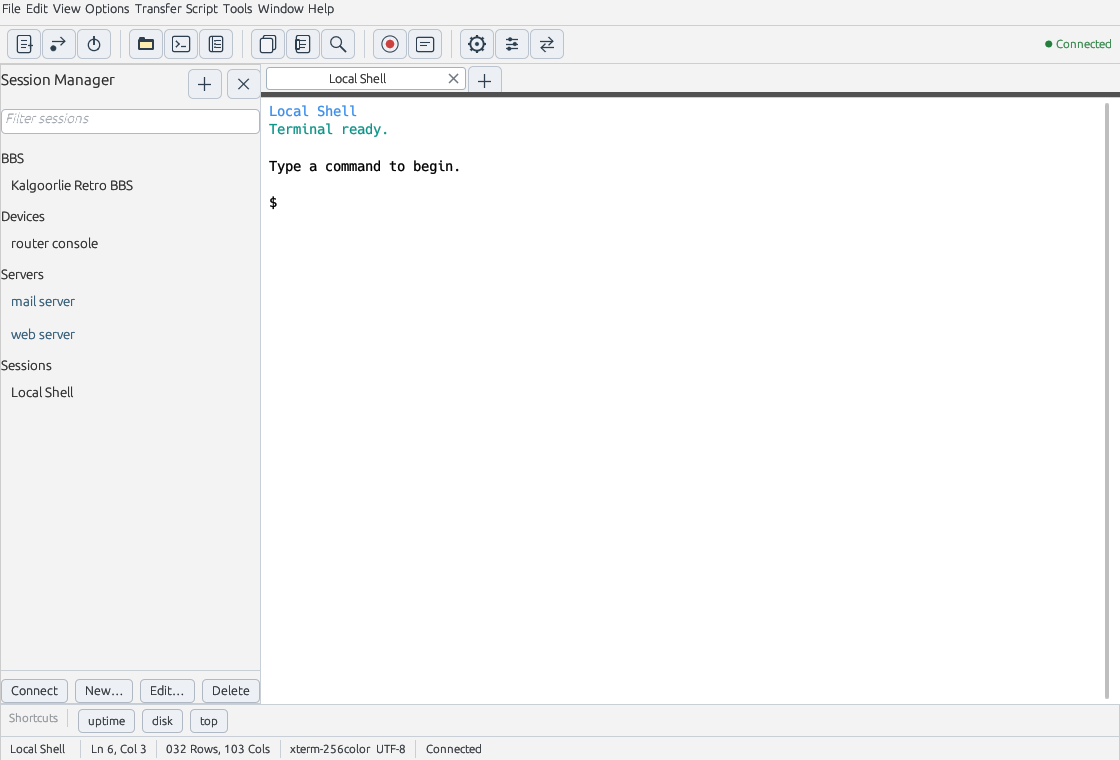
- Telnet, RLogin, raw TCP, serial ports, SFTP and local shells
- Automatic reconnect, keepalive, anti-idle and logon automation
- Sync sessions between your computers through a shared folder (passwords are never synced)
BBS and tools
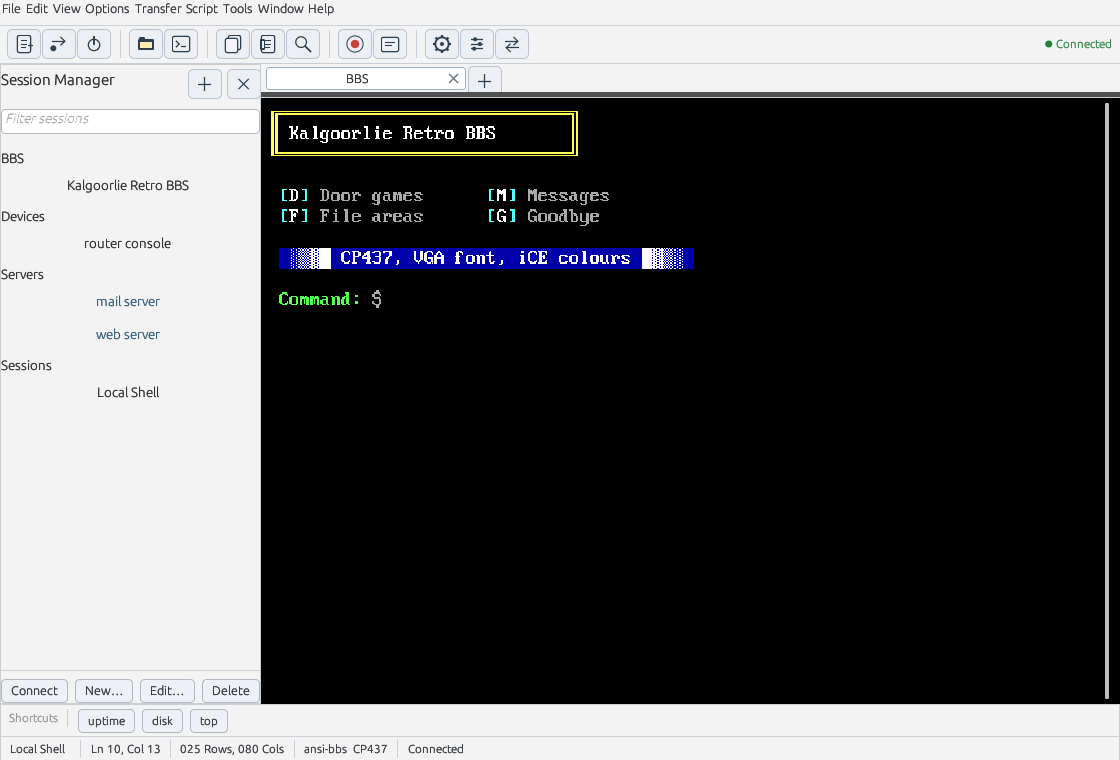
- BBS sessions: CP437, a DOS-style ANSI-BBS screen with iCE colours, a built-in VGA font, 80×25 scaled to the window, and Zmodem downloads that start by themselves
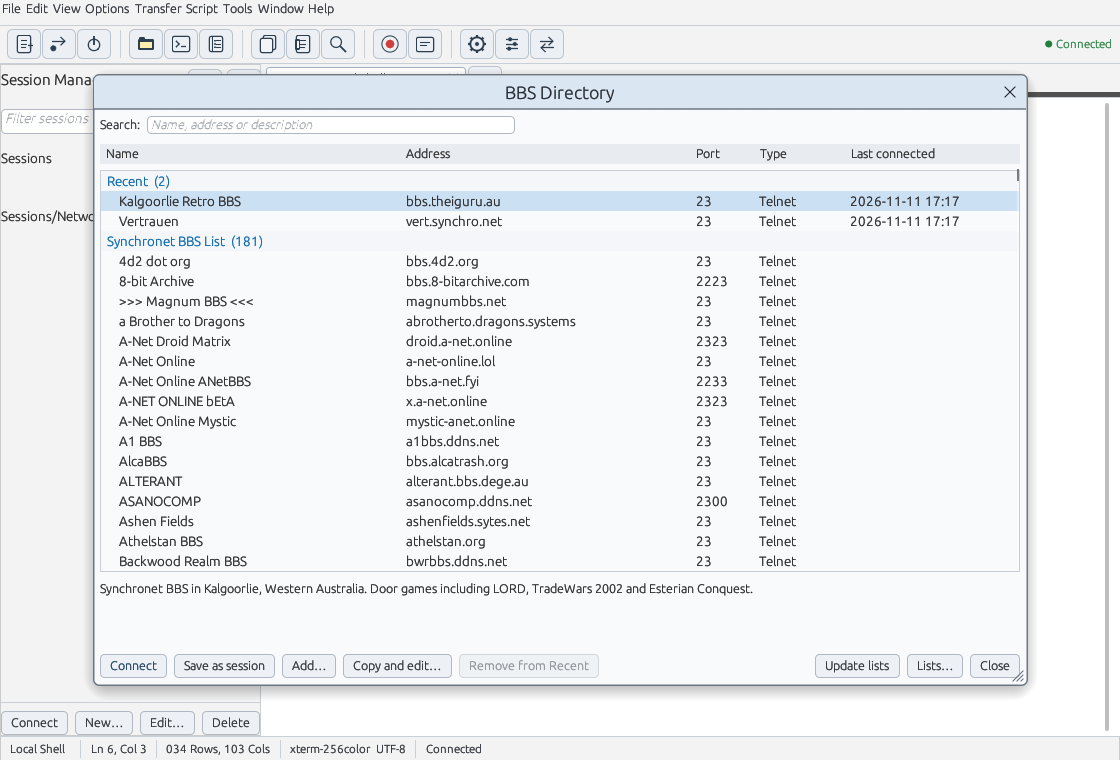
- A BBS Directory: download the Synchronet BBS List and the Telnet BBS Guide, call any BBS in a tab with one click, keep the BBSes you call at the top, and add your own
- Import your SyncTERM BBS list; RLogin passwords kept in the system password store
- Python and built-in Lua scripting; scripts written for Lantern Terminal and SyncTERM-Lua run unchanged
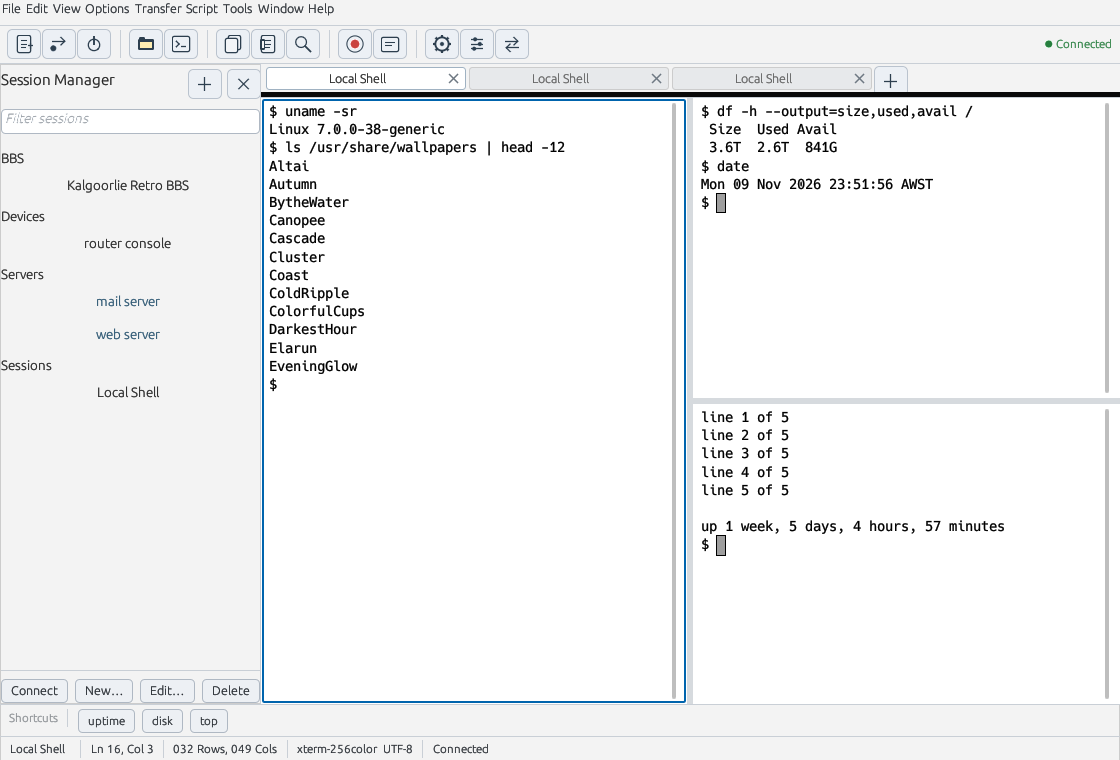
- Split panes to watch several sessions at once, and tear-off tabs that get their own window
- VT220/xterm emulation with DEC line drawing, double-size lines, margins, 132 columns and sixel graphics, plus Wyse 60 and SCO ANSI terminal types
- Built-in Zmodem, Ymodem, Xmodem and Kermit on Linux and Windows
- Function keys for Help, Session Options, Find, Reconnect, the SFTP browser, logging and scripts (or send them to the remote program)
- Highlighting and key mappings edited in tables, button bars, logs, character sets and paste pacing
- Update notifications: Saltbush tells you when a new version is out and can install it for you
Screenshots
Installing
Windows
Download and run saltbush-1.9.3-windows-x64-setup.exe. It asks whether to install just for you (no administrator rights needed) or for everyone on the computer (in Program Files; Windows asks for administrator rights), and adds Saltbush Terminal to the Start menu. Updates keep the same choice. For a portable copy, extract the Windows ZIP and run Saltbush Terminal/saltbush.exe. Python scripts need Python 3 from python.org; Lua is built in. For the SSH agent window, start the "OpenSSH Authentication Agent" Windows service.
Linux
Download the Debian package and run these commands in its download folder:
sudo apt install ./saltbush_1.9.3_amd64.deb
saltbush
The package needs Ubuntu 24.04, Debian 13 or newer. On other distributions use the tar archive: extract it and run ./install.sh, which installs for your user only.
Updates
From version 1.5.0, Saltbush checks this site once a day and tells you when a new version is out. Update Now downloads it, checks its checksum and installs it: the Debian package asks for your password, and the Windows installer runs and Saltbush closes. Portable copies open this page instead. Help → Check for Updates checks at any time, and the notices can be turned off. Version 1.4.0 and older have no update check, so install 1.5.0 by hand once.
More detail: installing, updates and troubleshooting.
Your first session
- Choose File → New Session…, pick a protocol and enter the connection details. For a BBS, choose Tools → New BBS Session… instead.
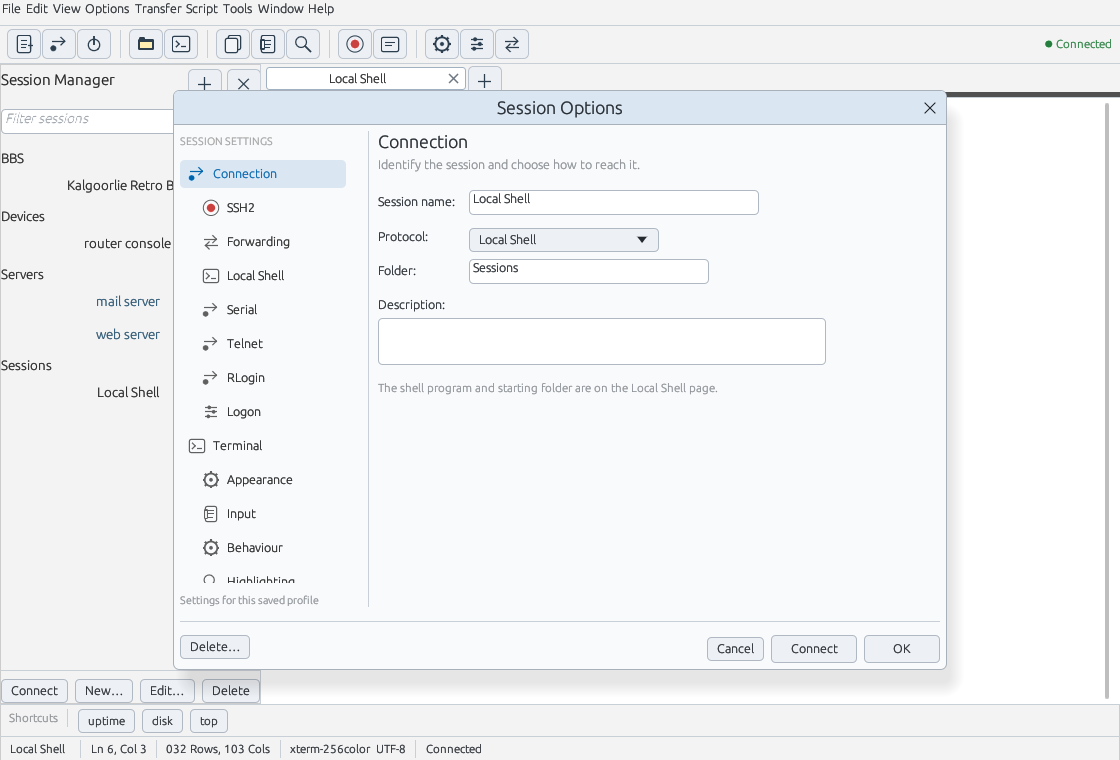
- Give the session a name and a folder. It appears in the Session Manager.
- Double-click the name to connect. For SSH, check a new server's fingerprint and answer the password or passphrase question in the terminal.
Right-click sessions for Properties…, Apply BBS Settings…, Duplicate and Delete…. Ctrl+click selects several sessions to change together. Application shortcuts use Ctrl+Shift, so Ctrl keys reach the terminal.
Documentation
- Overview and quick start
- Installing, updates and troubleshooting
- Sessions, SSH and options
- BBSes, Zmodem and the SyncTERM list
- Python and Lua scripting
- Building from source
- Version history
Offline copies: README, scripting guide and limitations.
Downloads
Version 1.9.3. Free downloads for 64-bit Windows and Linux.
Windows installer
64-bit Windows 10 or later. Installs just for you (no administrator rights) or for everyone on the computer (Program Files; asks for administrator rights), with a Start menu shortcut and an uninstaller. Includes libssh and OpenSSL for the built-in SSH engine, and Lua.
SHA-256 8e8c8e57806ef74e4836b414b96e225b7a153690037c27a0ce47b7d50bf168e2
Windows portable ZIP
Extract it anywhere and run Saltbush Terminal/saltbush.exe.
SHA-256 fca1d60f9a750b5ce874fa06d9192997b7c6e56c924f2a6b3112c0b4d8e4b534
Linux Debian package
64-bit Ubuntu 24.04, Debian 13 or newer. apt installs the libraries it needs.
SHA-256 18b548248fbb1227e31966d5d58ef877bd31b5c827abd0e989eca169a00d0b5d
Linux tar archive
For other distributions: extract it and run ./install.sh (installs for your user, no root). Needs glibc 2.34 or later and libssh.
SHA-256 d90422f90a2f0017f0aa5efdb890f057fa3fcc370e2cf6d2f0ba1397c443f0e3
Source code — tar.gz
Rust source, tests and the Linux and Windows build scripts.
SHA-256 cb2ad69a2465768c85ec73a9a1404db3ff768f7daf8cc10456a1b7cf32fa7ca5
Source code — ZIP
The same source package in ZIP format.
SHA-256 a951717fea87075e28f0c8e8013164cb9ae3cbc40e450d1902810aeef7180746
SHA-256 checksums
Checksums for the release files, guides and bot scripts.
SHA-256 16797758dd052dd0623e150b3da4889a36c83ae8a3c8d7cdf780b61948fd38d6
To check downloaded files, put SHA256SUMS in the same folder and run sha256sum -c SHA256SUMS --ignore-missing.
Bot scripts (experimental)
Experimental. These scripts were written for Kalgoorlie Retro BBS and are still being tested. They make real moves in your game, so watch the first runs and stop them if anything looks wrong.
Two door-game bots written in Lua for the SyncTERM-Lua fork. They run unchanged in Saltbush Terminal, Lantern Terminal and SyncTERM-Lua.
LORD bot (experimental)
Plays one day of Legend of the Red Dragon 4.06: forest fights, master challenges, gear, the bard and Violet, bank and an Inn room.
SHA-256 debf1fe390d57be9a27f90a89bdd9ea1c4f4f7cfaf5cbf545ad2ef0b5f15c714
TradeWars bot (experimental)
Spends a day of TradeWars 2002 turns: maps the universe, trades between port pairs, haggles, and ends the day in FedSpace.
SHA-256 026ad918b4a0e5b3b76d4a870c9d6d2fda7cdbe7d463ccb02c8ac6a4f51cec28
Run a bot
- Make the BBS session with Tools → New BBS Session… (Telnet or RLogin) and put your BBS user name in Username.
- Log in and enter the game. Start the LORD bot at the "Enter the realm" menu or in the Town Square; start the TradeWars bot at the sector Command prompt.
- Choose Script → Run… and pick the script. Its progress appears in the Activity pane. Script → Cancel stops it at any time.
Each bot keeps its log, and the TradeWars bot its map, in the folder the script is in. Run one bot per character.
Release notes and scope
Tried on real computers: tear-off tabs and RDP sessions (new in 1.8.0) have been tried on a Linux desktop and on Windows with several monitors, including two RDP sessions at once. The BBS Directory (new in 1.9.0) has been tried on a Linux desktop; downloading the lists on Windows has not been tried yet.
1.9.3: session names in the Session Manager line up on the left instead of being centred, and the Windows installer can install for everyone on the computer as well as just for you.
1.9.2 fixes what a review of the whole program found. Security: on Windows the scripting interface's password was always the same, so other programs on the computer could use it; BBSes from the BBS Directory or a SyncTERM list were given the default session's logins (an RLogin credential, SSH key or agent); updates are now only installed from https downloads with a checksum. It also fixes crashes and hangs (a host could crash the terminal with certain screen sequences; Add Key with a wrong passphrase hung the program; a stalled port forward froze the session), settings that could be replaced with defaults when a file could not be read, uploads to SFTP servers without the fsync extension, Zmodem files over 4 GiB, and many smaller problems in sync, SFTP, Zmodem, Kermit, the terminal, RDP and scripting. Sync no longer makes the window wait for the sync folder. See the version history for the full list.
1.9.1 fixed the BBS Directory: Save as session now puts the BBS in the Sessions folder, like New Session, instead of above it at the top of the Session Manager.
1.9.0 added the BBS Directory (toolbar button or Tools → BBS Directory), like the dialling directory in SyncTERM:
- Update lists downloads the Synchronet BBS List and the Telnet BBS Guide, only when you press it. The Synchronet list comes from the Kalgoorlie Retro BBS with Telnet addresses first, so you reach each BBS's own login and new-user screen.
- BBSes you have called stay at the top under Recent, with the Kalgoorlie Retro BBS always first. Search by name, address or description.
- Connect opens the BBS in a tab with the BBS settings; Save as session adds it to the Sessions folder in the Session Manager. A BBS listed only for SSH asks whether to use Telnet or SSH with your user name, and remembers the answer.
- Add your own BBSes, and add or change list addresses. A list update never changes a BBS you have called: a new address is offered instead.
1.8.2 added:
- Copy Public Key to Server (Tools menu, or right-click an SSH session): like
ssh-copy-id, it logs in once with your password, adds your key to~/.ssh/authorized_keyswith the permissions SSH requires, skips a key that is already there, and checks that the key then logs in on its own. - Clearer window edges: windows inside Saltbush have a darker border and a shadow, the SFTP browser's two sides are each in an outlined box, and each new browser opens offset from the last.
1.8.1 fixed: Tear-off tabs on Windows with several monitors: a tab dragged out could open its window off the screen (it looked minimised), and dragging it back often did not dock. Window positions are now worked out in screen pixels, and a new window opens where the tab was dropped.
1.8.0 added:
- Tear-off tabs: drag a tab down out of the tab bar to give it its own window; the session keeps running. Dock it back with "Dock to Main Window", by closing the window, or by dragging it onto the tab bar (not on Wayland). Right-click a tab for Move to New Window.
- RDP sessions: connect to Windows Remote Desktop in a normal tab (TLS with Network Level Authentication), with the desktop fitted to the tab, keyboard and mouse, text clipboard, Ctrl+Alt+Del and Windows key buttons, and a remembered server certificate. You can also use the system RDP program (FreeRDP or mstsc) instead.
1.7.0 added:
- Function keys: F1 Help, F2 Session Options, F3 / Shift+F3 Find next / previous, F4 Quick Connect, F5 Reconnect, F6 next pane, F7 SFTP Browser, F8 send a file, F9 logging, F11 full screen, F12 run a script (Shift+F12 cancel, Ctrl+F12 run the last one again). F10 and Alt+F1 to Alt+F12 go to the remote program, and a session option gives it all of them.
- SSH: jump hosts and Ed25519 certificates in the built-in engine, about 40 OpenSSH
-ooptions, and "Use FIPS-approved algorithms only" (it limits algorithms; Saltbush is not a FIPS 140 validated module). - Sync between computers through a shared folder such as Nextcloud, Syncthing or Dropbox: sessions, folders, credential user names, button bars and the default session. Passwords are never synced.
- Terminal: sixel graphics, double-width and double-height lines, left/right margins, real 132-column mode, selective erase and 8-bit C1 controls.
- Easier settings: highlighting and key mappings in tables with a colour picker and a "press a key" button; Script > Run remembers the last script; after an update the window comes back as it was.
- macOS: the source now supports macOS and includes a build script for a Mac with Homebrew. It has not been tried on a Mac yet, so there is no Mac download.
1.6.1 made scripts much faster and let you copy from the Activity pane. 1.6.0 added:
- A two-pane SFTP browser: this computer on the left, the server on the right. Upload >> and << Download copy the selected files and folders across, and double-clicking a file copies it to the other side. New Folder, Rename and Delete work on both sides.
- Resumed transfers: an interrupted upload or download continues where it stopped the next time you send the same file, as long as the original has not changed.
- Permissions: tick read, write and run for owner, group and others on server files and folders.
- Transfers keep the modification time, and uploads from Linux keep the file's permissions.
1.5.0 added update notifications (a daily check with Update Now, Not Now and Skip This Version, and Help → Check for Updates) and fixed pasting on Wayland desktops. 1.4.0 added split panes, the SFTP browser, the SSH agent window with smartcard support, X11 and agent forwarding, certificate and Kerberos logins in the built-in SSH engine, built-in Xmodem, Ymodem and Kermit, fuller VT220 emulation and the Wyse 60 and SCO ANSI terminal types. See the version history for everything.
Checked with 238 automated tests (including the BBS Directory against a local web server and test BBSes, and a real download of both BBS lists) (including an RDP test server): SSH against a private OpenSSH server (key, certificate and agent logins, agent and X11 forwarding, forwards, compression), the SFTP browser against the same server (also through jump hosts), password and keyboard-interactive logins, remote and SOCKS forwards, FIPS mode and Ed25519 certificates, Xmodem, Ymodem and Kermit against lrzsz, gkermit and C-Kermit, smartcard keys with a software token (SoftHSM), the update check against a test release, plus Telnet, RLogin, serial over a pseudo-terminal, Zmodem and real Python and Lua scripts. The Windows build was checked under Wine and on Windows Server 2022, where it needs a graphics driver with OpenGL 2.0 to open its window. A real BBS was checked over Telnet. Kerberos was not tested against a real Kerberos server, and updating through the Windows installer has not been tried yet (updating the Linux package has). Read the limitations before relying on it.
Source and licence
Written in Rust with egui, libssh and Lua. Saltbush Terminal is free software under the MIT licence; bundled components keep their own licences (vt100, the VGA font, libssh, OpenSSL, zlib). The scripting modules are adapted from Lantern Terminal.
Build instructions · MIT licence
Questions and bug reports: slaterm@theiguru.au.